The poor man’s Confluence to Markdown converter
In short: You can use DevTools to copy the HTML of a Confluence article and paste it into an HTML-MD converter.
Note that if you have time and freedom to install some command line software, Pandoc is very good at this kind of thing. The following is a quick and lazy alternative.
You can apply this to almost anything on your system that appears like rich text (with headings, bullets, etc.) like a Word doc.
- Make a new file with this content:
<div contenteditable>. Save it aseditor.htm. - Open your Confluence article (in View mode, not Edit)
- Copy all the text of the article
- Open editor.htm in your browser, and paste your page content into the editable div
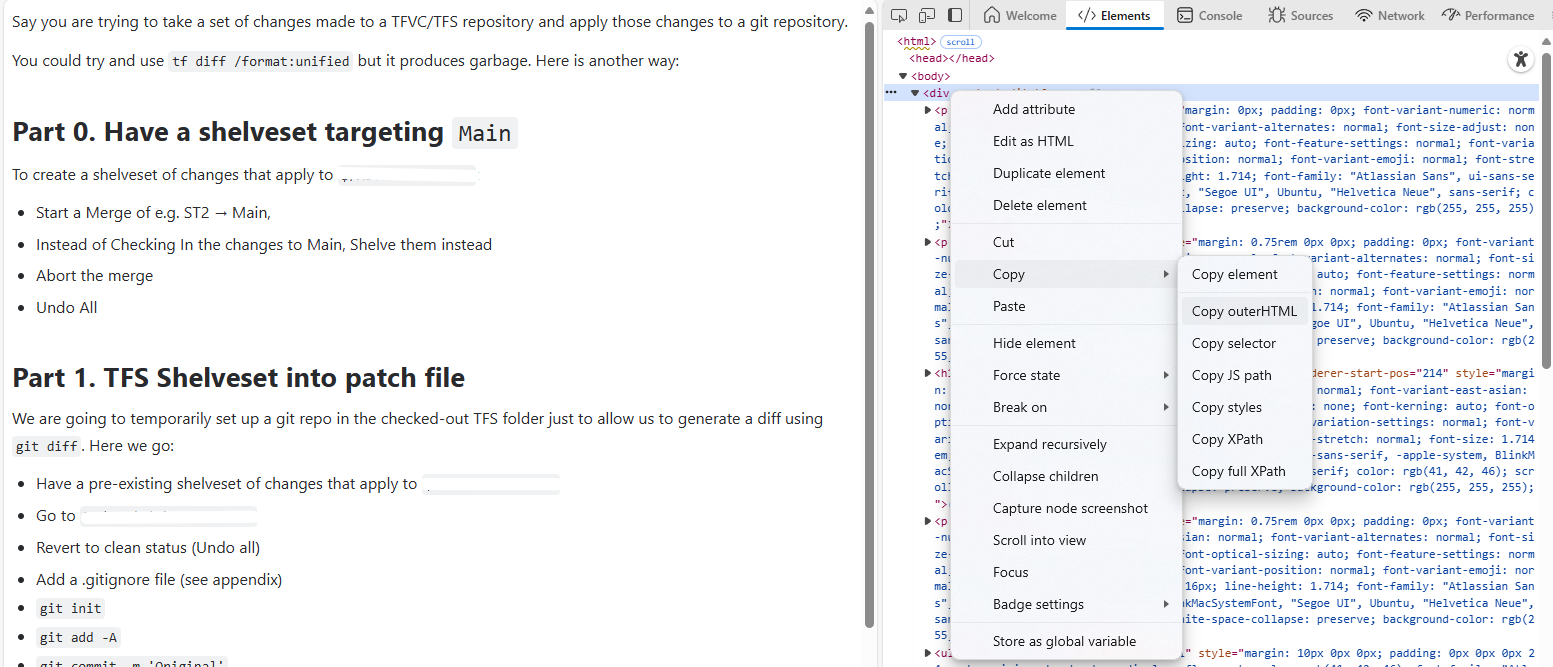
- Open DevTools (F12) or Inspect Element (Ctrl+Shift+C) and select any part of the page (see image)
- In the Elements inspector, right click the
<div>node and selectCopy → Copy outerHTML(or similar) - Paste into an HTML to MD tool such as markdownlang or htmlmd or codebeautify (N.b. I don’t endorse any of these or their data security - exercise caution!)
- Receive Markdown!
You may then want to lightly edit the markdown to put it in your own style.
I checked and this method worked with headings, bullets, and inline code. I didn’t test it on code blocks, quotes, or tables.
Steps 1-4 aren’t strictly necessary for Confluence - you could just use the DevTools on the original page to copy the outerHTML of the <div class="ak-renderer-document"> node. However, this method will let you take the content of a Word doc (or any other copyable rich text) and turn it into HTML.
Steps 5-8 help you turn that HTML into Markdown. 📃🪓